 [August- 1st week tip],
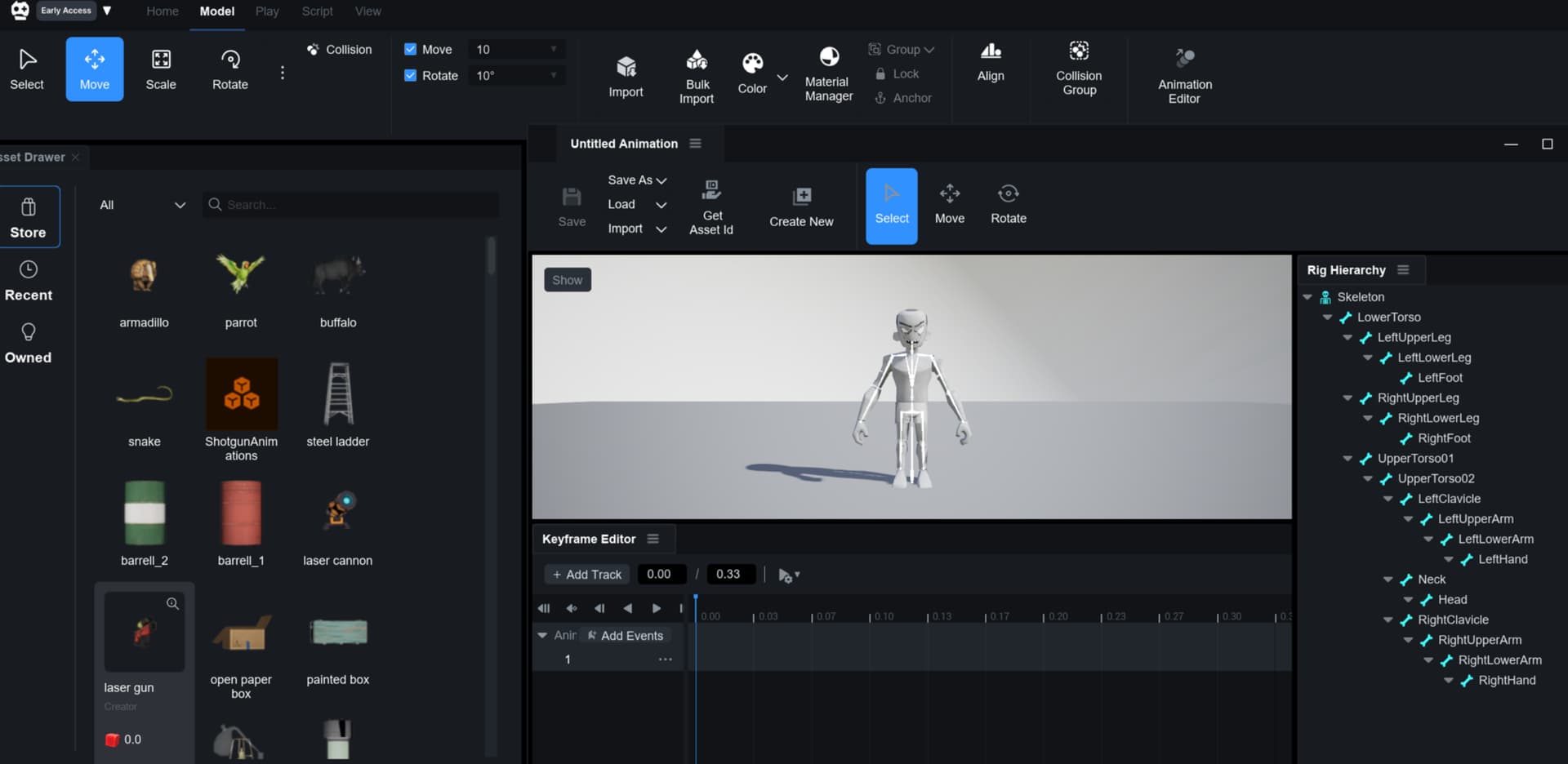
Create character animations directly within the studio without using separate DCC tools like Max or Blender.
 Overview
Using the studio’s built-in animation editor, you can create animations directly within your workflow without needing external programs. You can also easily import and edit FBX animation files created externally.
 Features
- Precisely edit animations on a keyframe level in the timeline, and preview and check animations in real-time in the preview panel.
- Import FBX animation files that were created externally.
- Register your animations on the server and use them by loading them from the server.
- Set animation events to link with the necessary processing in your scripts.
 Activating the Editor
You can display the Animation Editor by selecting the Model tab in the top menu bar of OVERDARE Studio and clicking the Animation Editor button that appears.
 Registering (Publishing) Your Animation
- You can register the animation you’ve created by clicking the Get Asset Id button. Once the animation is registered, an Asset Id will be generated.
- To use the animation, it must be placed in the Level Browser. Add the Animation to ServerStorage, select the added Animation, and then copy the generated Asset Id into the Animation Id property in the properties window.
- You can now use the Asset Id in your script to play the animation.
(Note: If the animation is not placed in the Level Browser, it may not display correctly on mobile devices.)
 Important Notes
When you save an animation you are working on, it is saved to OVERDARE Studio, not to the map.
Therefore, if you open the map on a different PC, the animation you were working on will not be displayed.
Once you’ve finished an animation, you must click the Get Asset Id button to register it to OVERDARE, then add the animation to the Level Browser and link the Asset Id to the Animation Id.
You can re-import your registered animations from OVERDARE using the Import from OVERDARE option.
If the data is modified after the animation has been registered, you must re-register it to reflect the changes, then generate and connect a new Asset Id before using it.
 Learn more: